Part 3 got a styled CV page rendering out of a container. This post is about the other half of the site: the blog you are reading right now, and specifically how a plain folder of Markdown files becomes rendered posts.
As always, I had AI assistance along the way. This post has a good example of where it pointed me confidently at something that did not exist, which I will get to.
The storage decision: no database
The obvious instinct for a blog is "I need a database." I decided I did not, at least not yet.
Every post is a Markdown file sitting in a posts/ directory. There is no database, no posts table, no ORM. The filesystem is the database. For a personal blog where I am the only author and posts number in the dozens rather than the thousands, this is plenty, and it comes with real upsides: I can write posts in my own editor, version them in git alongside the code, grep through them, and back them up by copying a folder. A post is just a text file, which is about the most durable format there is.
The tradeoff is that features like search or comments eventually want a database. My answer to that was "add one when I actually need it, for the features that need it, and leave the posts as files." Nothing about the file approach paints me into a corner later.
Front matter: metadata at the top of the file
Each post file starts with a small block of YAML metadata called front matter, fenced off by triple-dashes:
---
title: The Blog Engine
date: 2026-07-05
slug: the-blog-engine
summary: A one-line description for the index.
tags: [fastapi, markdown]
---

The actual post content starts down here.
A library called python-frontmatter splits that header from the body when the file is loaded. The header gives me structured fields (title, date, slug, tags) to work with, and the body is the Markdown that becomes the post.
Reading them all for the index page is a small function: loop over every .md file in the posts directory, load its front matter, collect the fields, and sort by date so the newest post is first.
def get_all_posts():
    posts = []
    for f in POSTS_DIR.glob("*.md"):
        post = frontmatter.load(f)
        posts.append({
            "title": post["title"],
            "date": post["date"],
            "slug": post["slug"],
            "summary": post.get("summary", ""),
            "tags": post.get("tags", []),
        })
    return sorted(posts, key=lambda p: p["date"], reverse=True)
Two routes use this. /blog calls get_all_posts() and renders the index. /blog/{slug} loads one specific file and renders the full post.
Rendering Markdown
The body of each post is Markdown, and it needs to become HTML. That is a one-liner with mistune:
content = markdown_renderer(post.content)
The rendered HTML gets handed to a Jinja2 template, which drops it into the page with the site's styling around it. Headers, lists, links, blockquotes, code blocks: all standard Markdown, all handled by the renderer. The single post route, stripped to its essentials, reads:
@app.get("/blog/{slug}")
async def blog_post(request: Request, slug: str):
    path = POSTS_DIR / f"{slug}.md"
    if not path.exists():
        raise HTTPException(status_code=404, detail="Post not found")
    post = frontmatter.load(path)
    content = markdown_renderer(post.content)
    return templates.TemplateResponse(request, "post.html", {
        "title": post["title"],
        "date": post["date"],
        "tags": post.get("tags", []),
        "content": content,
    })
The filename lesson
Here is the first thing that bit me, and it is embarrassingly simple. The URL for a post is its slug, and the route looks for a file named {slug}.md. So the filename on disk has to match the slug in the front matter.
My very first test post had a file named first-post.md but a slug of hello-world in its front matter. Clicking it gave a clean 404. The route dutifully went looking for hello-world.md, which did not exist, because the file was called first-post.md. The post was right there on disk. The URL was just pointing at a filename that did not match.
The fix is a one-word convention: name the file after the slug, every time. the-blog-engine slug means the-blog-engine.md on disk. Now it is muscle memory, but it cost me a few confused minutes the first time because a 404 makes you assume the file is missing, when really the file was fine and the name was wrong.
Making code look like code
This is a homelab and networking blog. Nearly every post has a config snippet or some CLI output in it, so syntax highlighting was not optional.
I used highlight.js, which tokenizes code and wraps each piece in a span that CSS then colors. Rather than load it from a CDN, I self-hosted the files in the site's static directory, the same way I handle every other third-party asset. The reasoning is simple: if a CDN has a bad day, I do not want my code blocks silently turning into a wall of monochrome text. Self-hosting means the highlighting lives and dies with my own server, which is the only thing I want it depending on.
For most languages this just works. Tag a fenced code block with bash or python and highlight.js recognizes it. Then I tried to highlight a Cisco config, and things got interesting.
The Cisco detour
I wanted Cisco IOS configs to highlight properly, since they show up constantly in what I write. highlight.js supports a lot of languages, so I assumed cisco or cisco_ios would be among them, grabbed what I believed was the right file, and pointed at it.
It 404'd. The language file I was told to use did not exist at that path. It turns out Cisco IOS is not part of the highlight.js core language bundle at all. The confident answer I had been working from was simply wrong about a specific fact: which languages ship in the default set. That is a recurring theme with AI assistance. It is excellent at the shape of a solution and unreliable on the precise, checkable details, and telling the difference is on you.
The real answer was a third-party plugin, highlightjs-cisco-cli, that adds Cisco IOS as a language on top of the core library. I pulled it from its source, self-hosted it alongside the rest, and referenced it. One more detail to trip on: the language identifier the plugin registers is cisco, not cisco_ios, so the fenced code blocks needed the right tag before anything happened.
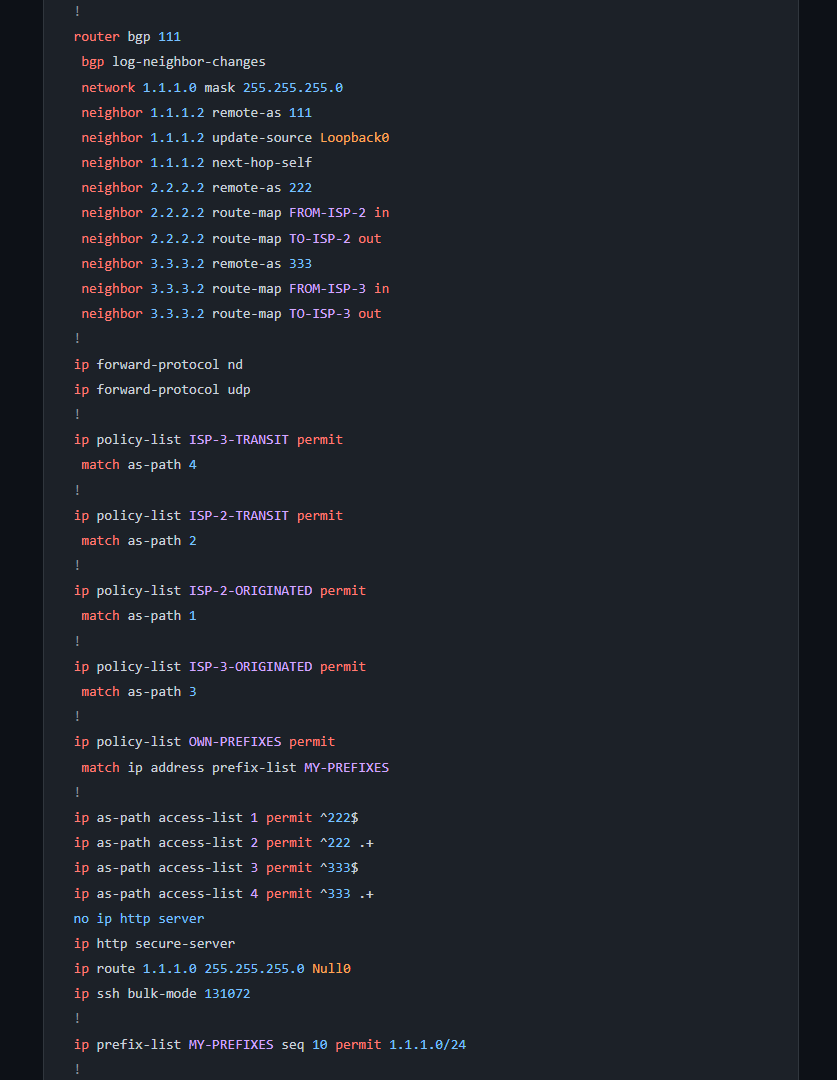
And here is the honest coda: even with the plugin, Cisco highlighting was only okay. IOS configuration syntax is genuinely hard to tokenize cleanly. It is not a programming language with tidy keywords and delimiters, it is a flat command grammar where the same word means different things in different contexts. So highlightjs-cisco-cli gave me keyword detection on things like router, interface, and ip, and a lot of the rest stayed plain. For a reader who knows IOS, the monospace block was already doing most of the work, and the color was a modest bonus rather than a revelation.
This left me a little unsatisfied, and gave me a decent rabbit hole to jump into. When it came time to write this blog entry, I decided to find a better solution, but I'll go into more detail on what the fix was in its own post. Consider it teased!
What's next
At this point the blog renders: files become posts, posts are styled, and code blocks are highlighted. But I was still writing every post by hand-editing Markdown files and dropping them in the folder.
Part 5 is about fixing that: a browser-based admin interface for writing posts, protected behind authentication, with a live preview. It is also where the single most annoying bug of this whole project lived, an invisible character courtesy of the browser that quietly wrecked my formatting and took a genuinely embarrassing amount of time to see. That one earned its own post.
Hail Southern.